




On this page
A practical guide to capturing both sides of a conversation while keeping the earphones you enjoy using.
You already have earphones you like. They fit comfortably, sound good to you, and get you through client calls, interviews, and long meetings. Now you want to save an important conversation.
That is where things can become confusing. A recording app may capture only your voice. A screen recording may save the picture without the conversation. A recorder sitting beside your phone may miss the person speaking into your ears.
Recording calls with Bluetooth earphones is possible when your recording method can capture both the incoming and outgoing audio. The right approach depends on your phone or computer, the calling app, and how your earphones connect. This guide explains your options, when extra hardware makes sense, and how HiDock P1 and P1 mini work with compatible earphones you already own.
From HiDock: this guide includes our products alongside built-in recording options so you can choose a setup that fits your calls.
Can You Record Calls With Bluetooth Earphones?
Yes, with a compatible recording setup. However, a working Bluetooth connection does not automatically give a separate recording app access to the entire call.
Think of a conversation as two paths: your microphone sends your voice out, while the other person's voice comes back through your earphones. A complete recording needs both. A voice memo that successfully uses an earphone microphone proves only that it can capture that microphone in that situation.
Operating systems also control which apps can access audio during a call. Android's developer documentation, for example, restricts voice-call capture to privileged apps with the required permission. Installing an ordinary recorder does not grant that access.
There is another distinction worth making before you begin: a cellular phone call, a WhatsApp call, and a Zoom meeting are different recording situations. A method that works in one should be checked separately in the others.
One more thing before the how-to: recording laws differ by country and by state, and some require every participant's consent. Check what applies where you and the other person are, and tell participants you are recording. The rest of this guide assumes you have.
What Are Your Options for Recording Calls?
Start with the tools already available on your device or meeting platform. If they save a complete recording in a usable format, they may be all you need.
Swipe the table sideways to compare all options.
|
Method |
When to consider it |
What to check |
|---|---|---|
|
Built-in phone recording |
Your supported dialer offers recording. |
Device, region, carrier, call type, and a test with your earphones. |
|
Meeting-platform recording |
You primarily record scheduled online meetings. |
Account eligibility, host permission, admin settings, and file access. |
|
Third-party app or service |
A provider explicitly supports your calling workflow. |
How it captures both sides, supported calls, charges, and storage. |
|
Recording earbuds |
You also want to buy or replace your earphones. |
Recording support, sound, fit, microphone quality, and everyday use. |
|
Hardware for existing earphones |
You want recording while keeping a preferred compatible pair. |
Phone/computer connection, audio routing, portability, and controls. |
Use built-in phone recording where supported
On iPhone: Apple's current guide describes opening the Phone app, making a call, and choosing More → Call Recording. Participants hear a recording announcement, and recordings are saved in Notes. Availability is limited by region and language. Check Apple's current requirements, then make a short test with your earphones connected.
On Android: check the recording options in your phone's dialer. In Phone by Google, eligible non-Pixel devices use Record during a connected call; supported Pixels use Call Assist → Call recording. Google limits availability by device, carrier, and region and notifies participants. Those instructions do not apply to every Android dialer.
Use the meeting platform's recording tools
Zoom's computer-recording guide explains that on a computer the host can start recording or grant recording permission to a participant. Choose Record, then Record on this Computer if prompted. This provides a useful starting point when you already meet through Zoom. Account and administrator settings can affect availability.
For other platforms, check their own recording requirements. Also consider what you need afterward: access to the audio, shared video, a transcript, or a file you can keep independently.
Evaluate third-party software and hardware carefully
Before paying for an app or service, ask how it records the call. Does it capture audio on your device, require a merged call, or move the conversation into its own service? Ask for explicit support for your phone, calling app, and Bluetooth setup. A free test with both speakers is more useful than a generic compatibility claim.
External recorders also need the right audio source. For example, Plaud says its Note phone-call mode does not support headphones because that mode relies on a vibration conduction sensor. That is a limitation of the stated device and mode, not a rule about every recorder.
Do You Need to Replace Your Earphones to Record Calls?
A pair of recording earbuds may suit you, especially if you are already shopping for new earphones. But recording is only one part of a device you might wear for hours every day.
Consider what you have already learned about your current pair:
- Sound: you know whether you enjoy music and can comfortably follow conversations through them.
- Fit: you know whether they stay secure and remain comfortable through a long meeting.
- Microphone performance: you may already know how clearly colleagues hear you at home or outdoors.
- Daily routine: charging, controls, and switching devices are familiar.
Buying another pair means evaluating those things again, as well as recording support and any service fees. Dedicated recording earbuds can still be the right choice; compare the complete experience before deciding.
If you already like your earphones, a useful question is: can I add recording to this setup? HiDock P1 and P1 mini are designed for that approach. BlueCatch™ connects compatible Bluetooth earphones to the recorder, while USB-C connects the recorder to your calling device. This lets you keep your preferred pair in the workflow.
Keeping the same earphones preserves their physical fit. Check call sound, microphone behavior, and controls in the new connection too; familiar hardware does not guarantee every feature behaves identically through an added device.
How to Record Calls With Your Existing Earphones Using HiDock
Understand the connection first
The key is to place the recorder in both audio paths:
- Incoming voice: phone or computer → USB-C → HiDock → Bluetooth → your earphones.
- Your voice: earphone microphone → Bluetooth → HiDock → USB-C → phone or computer.
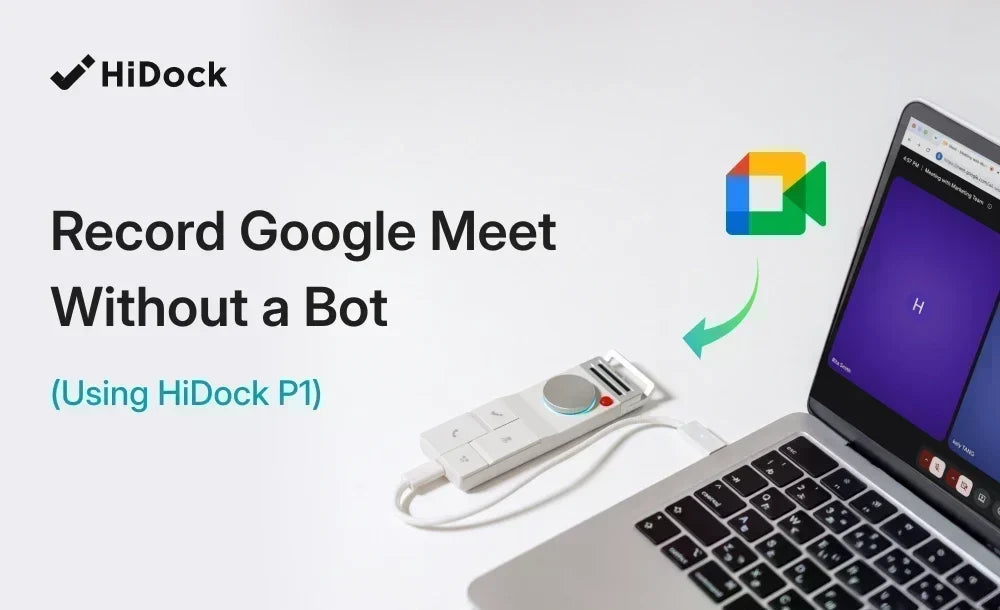
The recorder captures the conversation passing through that connection. Pair the earphones with HiDock through BlueCatch™, and use the HiDock audio route in your calling device or app. HiDock's P1 setup guide describes Call Mode as capturing both the earphone microphone and playback audio.

Set up P1 mini with a phone, tablet, or computer
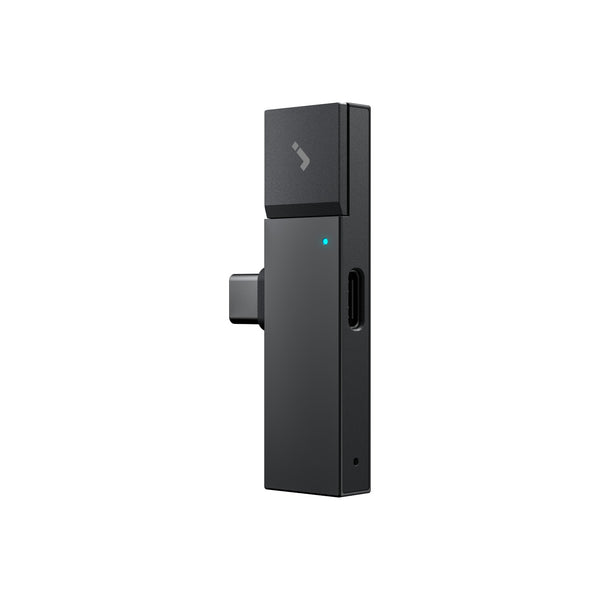
HiDock's P1 mini FAQ says P1 mini works with laptops, PCs, smartphones, and tablets that have a USB-C port; its compatibility list names iPhone 15 and later and Android phones with OTG support. OTG allows a compatible phone to work with USB accessories. Verify your own device before buying.
- Connect P1 mini. Plug it into the USB-C port on your phone, tablet, or computer, then open HiNotes.
- Pair your earphones. Put them in pairing mode and connect through BlueCatch™ in HiNotes.
- Check the call's audio route. Make sure the conversation uses the P1 mini connection.
- Start recording. Use P1 mini's recording control and verify that recording has started.
- Finish and review. Stop recording and check the saved conversation before relying on it.
A useful detail: HiDock's published WhatsApp walkthrough reports different behavior for its iPhone tests with AirPods and Bose earbuds. AirPods used the P1 mini path automatically; the Bose setup displayed an audio selector, where the P1 mini route could appear as Headphones. Those examples show why the actual audio route matters more than seeing one exact label. They are documented examples, not a guarantee for every model.
Watch the setup tutorial: How to Set Up BlueCatch™ on HiDock P1 mini with Earphones.
Set up P1 on a computer
- Connect P1 to your computer using its USB-C touch-control cable.
- Open HiNotes in a supported browser, associate the device, and find BlueCatch™ in its configuration.
- Put your earphones in pairing mode, scan, and connect them.
- In your meeting app, select HiDock P1 for both the microphone and speaker.
- Start a test conversation, use the recording control, then stop and review the file.
For the browser workflow, HiDock's full P1 computer setup guide specifies Chrome or Edge, and its Zoom walkthrough covers selecting P1 for both audio fields and recording through the touch-control cable.
After the first pairing, you can reconnect the previously paired earphones using BlueCatch™ instead of repeating initial setup, as HiDock's P1 daily-use instructions describe. Confirm the connection before starting the call.
P1 is not limited to computers. HiDock's quick start guide lists a separate smartphone flow that uses the HiNotes app; the steps above cover the computer workflow, which is the more common one for scheduled meetings.
Choose between P1 and P1 mini
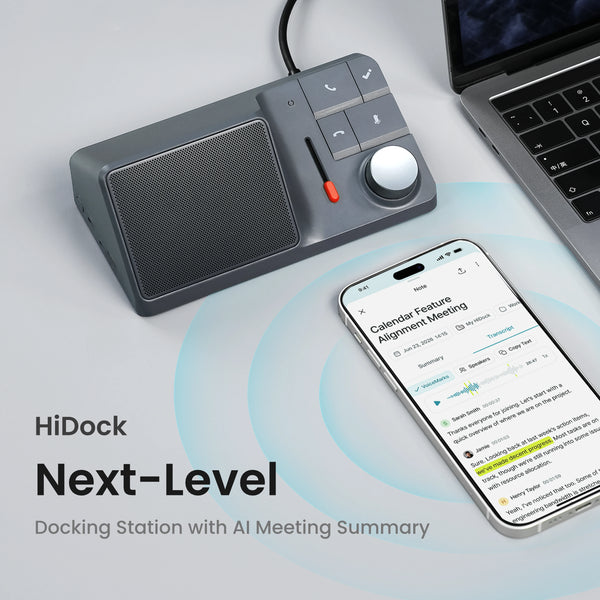
Both support Bluetooth-earphone recording, and both work with a phone or a computer. The real difference is power: P1 has a built-in battery, so it can also record in Room or Whisper mode on its own, away from any device. P1 mini has no battery and records while plugged in, which is what keeps it pocket-sized.
Swipe the table sideways to compare all options.
|
Consideration |
P1 |
P1 mini |
|---|---|---|
|
Recording modes |
Call, Room, and Whisper |
Call and Room (records while plugged in) |
|
Built-in microphones |
Two ECM microphones |
One ECM microphone (per HiDock's current spec sheet) |
|
Format |
Cable-connected recorder with a built-in battery |
Compact USB-C plug-in recorder |
|
Worth considering when… |
You also want standalone recording and quick spoken notes. |
You prioritize a compact accessory for supported calls. |
These are hardware and workflow differences; microphone count alone does not establish which produces better Bluetooth-call recordings. Check the current P1 and P1 mini specifications for your devices.
Get Clear, Complete Recordings—and Fix Common Problems
Run a short check before an important call
Tell participants you plan to record, obtain any required consent, and follow the rules and workplace policies that apply to the conversation. Built-in announcements and external recording controls work differently; make the notice part of your routine.
Check power, free storage, and the selected audio devices. Then try this simple two-speaker test:
- Ask a willing participant to help with a brief test call.
- Start recording. Say “This is my voice,” then ask them to say “This is the other voice.”
- Take turns speaking, and briefly speak at the same time.
- Stop and replay the file. Confirm both voices are understandable and neither disappears.
Repeat after a meaningful change, such as switching earphones, apps, or computers. Save the working configuration so you can reproduce it.
If the conversation may run long, plan for it: a single recording file caps at four hours, and recording stops at that point rather than splitting automatically. For an all-day session, start a fresh recording every few hours.
Troubleshoot the audio path
Swipe the table sideways to compare all options.
|
Problem |
What to check first |
|---|---|
|
Only one person is recorded |
Confirm the method supports both audio directions. With P1 on a computer, check that both the app's microphone and speaker use P1. |
|
Audio comes from the device speakers |
Recheck the call's output selection and the BlueCatch™ connection before restarting the test. |
|
P1 is missing from the audio list |
Complete BlueCatch™ pairing first. HiDock says P1's speaker and microphone appear after the earphones connect. |
|
The earphones switch to another device |
Disconnect that competing connection, then reconnect the earphones through BlueCatch™. |
|
The file is silent |
Check that recording actually started and that the microphone was not muted. On P1, a red light means the microphone is muted and a cyan light means it is recording. |
|
Sound is faint or intermittent |
Try a quieter location and a shorter Bluetooth distance. Ask whether the live call is also affected, then compare a new test recording. |
Use the P1 FAQ for device visibility and the computer setup guide for audio selection and reconnection.
After recording, give the file a useful name, such as the date and meeting topic. Confirm who should receive it and avoid uploading confidential conversations to services your organization has not approved.
Frequently Asked Questions
Can I record phone calls while using AirPods?
Yes, in supported setups. Use an available recording feature or a compatible hardware workflow, and test your specific AirPods, calling device, and app. HiDock's WhatsApp guide includes an iPhone, AirPods, and P1 mini example.
Can screen recording capture both sides of a Bluetooth call?
Do not assume so. Apple notes that some apps may prevent audio or video capture. A saved screen video is not proof that both voices were recorded. Use a verified call-recording method and inspect the file.
Can I record WhatsApp or other online calls with earphones?
A supported setup can do this. Check the individual app and audio route; successful cellular-call recording does not establish support for every online calling service.
Do all Bluetooth earphones work with recording devices?
Check the exact combination. Bluetooth capability alone does not establish recording compatibility, microphone behavior, or support for every earphone control. Review the manufacturer's requirements and test your intended workflow.
Can I transcribe and summarize the recording afterward?
Yes. Every HiDock device comes with HiNotes Member, which includes unlimited AI transcription — there is no free quota to run out of and no subscription required. Member also covers summary templates, calendar integration, and txt export. Speaker identification and the full template library belong to Pro, but every Member account gets 300 Pro minutes each month. You have to claim them on the Plans page in HiNotes; if you never open that page, the balance stays at zero. Review names, numbers, and decisions against the audio before sharing notes. See what HiNotes includes
Keep Your Preferred Earphones, Choose the Recording Setup That Fits
A useful call recording contains both voices and is easy to find when you need it. Start with your device or platform's recording tools, then consider additional hardware if your workflow calls for it.
If you already enjoy your earphones' sound and fit, include that in your decision. HiDock P1 and P1 mini offer a way to add recording around compatible earphones you already use. Choose the format that fits your routine, confirm the connection, and make a short test before your next important call.
Find your setup: compare HiDock P1 and HiDock P1 mini.


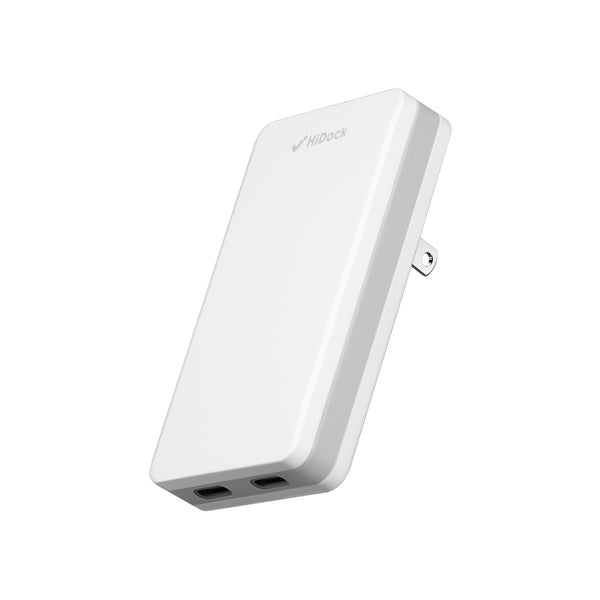
HiDock P1 mini
The only 12g AI recorder designed to capture calls while you keep your Bluetooth earbuds on.