





WhatsApp makes it easy to have voice and video calls from almost anywhere. Recording those calls is another story.
WhatsApp's current documented call controls include features such as mute, camera controls, screen sharing, and adding participants — but they don't include a native call-recording control.
So if you want to record a WhatsApp call, you need another approach.
You can try screen recording. You can put the call on speaker and use a second device. You can experiment with third-party recording software. Or you can use dedicated recording hardware.
And if you use AirPods or other Bluetooth earbuds, there is an additional problem: some software methods may capture your microphone but miss the other person's audio.
If you've ever finished a call and discovered:
"It only recorded my side."
this guide is for you.
We'll walk through the main ways to record WhatsApp calls, explain why some methods fail, and show how HiDock P1 mini approaches the problem differently.
Quick Answer: Can You Record WhatsApp Calls?
Yes — but WhatsApp itself doesn't currently provide a dedicated Record button in its documented call interface.
The most common approaches are:

If you're recording one casual call, try the free methods first.
If important WhatsApp calls are a regular part of your work — especially if you normally wear AirPods — dedicated recording hardware may offer a simpler workflow.
Why Is WhatsApp Call Recording So Difficult?
At first, recording a WhatsApp call sounds simple.
Your phone can hear the other person.
Your phone can hear you.
Your phone can record audio.
So why can't a recording app simply capture everything?
Because the audio you hear during a call isn't necessarily exposed to another app as one unrestricted audio stream.
Your microphone, the other caller's audio, WhatsApp, the operating system, and any connected Bluetooth device can all be using different parts of the phone's audio system.
A recorder might therefore have access to your microphone without having access to the remote caller's audio.
That's why you can end up with a perfectly clear recording of yourself saying:
while the other half of the conversation is completely missing.
What about iPhone Screen Recording?
iPhone includes built-in Screen Recording, and Apple lets you turn on the microphone while recording.
But Apple also notes that some apps may not allow their audio or video content to be recorded. In other words, being able to record what's on the screen does not guarantee that every app's internal call audio will be included.
For WhatsApp calls, it's therefore a good idea to make a short test recording before trusting Screen Recording for something important.
What about Android?
Android phones often provide more screen-recording and audio-source options, but results can vary by device manufacturer, Android version, and app.
Some phones may let you select device audio, microphone audio, or both, while communication apps can still behave differently from normal media playback.
The practical rule is the same:
Test your exact setup before relying on it.

Method 1: Use Your Phone's Screen Recorder
Screen recording is the first method worth trying because it's free and already built into many phones.
On iPhone, open Control Center and start Screen Recording. You can press and hold the Screen Recording control to enable your microphone.
Then make a short WhatsApp test call and listen to the recording afterward.
Don't just check whether the video exists.
Check specifically:
Can you hear yourself? Can you hear the other person?
If both sides are present and the quality is good enough for your needs, you may already have your solution.
If you hear only yourself — or no useful call audio at all — trying the same thing repeatedly usually isn't going to make the workflow more dependable.
Screen recording is best viewed as a free method to test, not something to assume will work identically across every phone and calling setup.
Method 2: Put the Call on Speaker and Use Another Device
The next method is much less sophisticated but often very effective.
Put the WhatsApp call on speakerphone.
Then use another phone, laptop, or voice recorder to record the sound in the room.
Because the second device isn't trying to access WhatsApp's internal audio, it simply records whatever it can hear through its microphone.
That means both sides of the conversation can often be captured.
The problem is the experience.
You can't keep the call private through your AirPods. Anyone nearby can hear it. Room noise becomes part of the recording, and you need to carry and position another device.
For a one-time call at home, that may be perfectly fine.
For an interview in a café, a customer call at an airport, or a confidential conversation in a shared office, it quickly becomes inconvenient.
Method 3: Try Third-Party Recording Software
You'll also find apps and services promising to record phone calls.
Some can be useful, but the exact workflow varies.
A service might depend on conference calling, call forwarding, cloud recording, microphone capture, or other techniques. Compatibility can differ between regular cellular calls and internet-based calls such as WhatsApp.
Bluetooth earbuds add another variable.
The key question isn't simply whether an app says "call recording."
It's whether it works with:
your phone + your OS version + WhatsApp + your audio route + your Bluetooth earbuds.
If you go this route, test it before an important call and check the resulting audio yourself.
Method 4: Use Dedicated Recording Hardware
The fourth option is to move recording away from another software app on your phone.
That's the approach behind HiDock P1 mini.
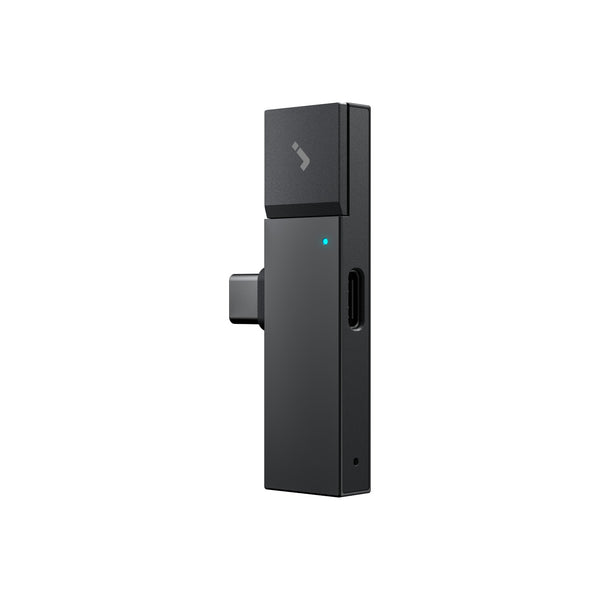
P1 mini is a compact AI voice recorder that connects to compatible USB-C smartphones. HiDock officially lists WhatsApp among the communication platforms supported by P1 mini, with compatibility for iPhone 15 and later and Android phones with OTG functionality.
The important difference is that P1 mini is designed around the call audio workflow itself.
And this becomes particularly useful when Bluetooth earbuds are involved.

Why Does My WhatsApp Recording Only Record My Side?
This deserves its own section because it's one of the most frustrating WhatsApp recording problems.
Imagine you're talking through AirPods.
Your voice goes into the AirPods microphone.
The other person's voice is being sent back to the earbuds.
Meanwhile, a recording app running on your phone may only have permission or access to one part of that audio path.
The result?
Your voice: recorded.
Other caller: missing.
Connecting Bluetooth earbuds can make the audio-routing situation even more complicated because the microphone and playback audio are being routed through a Bluetooth connection instead of simply playing through the phone's speaker.
So the problem isn't necessarily that your recording app is "broken."
It may simply not be able to access the audio you want it to record.
That is the specific problem P1 mini's Bluetooth recording workflow is designed to address.
How to Record a WhatsApp Call with HiDock P1 mini
The first setup takes a few steps. After that, everyday use is much simpler.
Step 1: Plug P1 mini into your phone
Connect P1 mini directly to your phone's USB-C port.
HiDock currently lists support for iPhone 15 and later as well as Android phones with OTG functionality.
Step 2: Pair your AirPods or Bluetooth earbuds with P1 mini
Pair your AirPods or other Bluetooth earbuds with P1 mini through HiNotes app.
Once paired, P1 mini becomes part of the audio path between your earbuds and your iPhone, allowing it to capture the call while you continue listening and talking through your earbuds.
You only need to complete the pairing process the first time. After that, reconnecting your earbuds for future calls is much simpler.

Step 3: Open WhatsApp and Check the Audio Route
Open WhatsApp and start your call as usual.
What you see in WhatsApp may differ depending on the Bluetooth earbuds you're using.
If you're using AirPods: In our testing with iPhone + AirPods + P1 mini, WhatsApp automatically routed the call through P1 mini once the AirPods had been paired with P1 mini. There was no separate audio-device menu to select — the call simply used the P1 mini audio path by default.
So in this setup, you can just start your WhatsApp call and continue to the recording step.

If you're using other Bluetooth earbuds, such as Bose: WhatsApp may display an Audio button that lets you choose between available audio devices.
In our testing with iPhone + Bose earbuds + P1 mini, tapping Audio displayed multiple options. Make sure the call is routed through the P1 mini connection — this may appear as Headphones in the iPhone audio menu — rather than routing the call directly to the Bluetooth earbuds.
Once the correct audio route is selected, you can continue using your earbuds normally while P1 mini records the call.

Step 4: Start recording with P1 mini
Use the physical control on P1 mini to start recording the conversation.
Instead of depending on a second recording app to access WhatsApp's audio, you're using dedicated recording hardware designed for this call setup.
When the call is finished, stop the recording and move on to HiNotes.

After the Call: Turn the Recording into Notes
Capturing the audio solves the first problem.
But there's another question:
What are you going to do with a 45-minute recording afterward?
If you need to find one customer requirement, one deadline, or one important quote, listening through the entire conversation again is inefficient.
This is where HiNotes becomes part of the workflow.
Every HiDock device purchase currently includes the free HiNotes Member plan, with unlimited AI transcription and summaries, support for 75 languages, VoiceMarks, and a set of summary templates.
So instead of ending with:
WhatsApp call → audio file
you can end with:
WhatsApp call → recording → transcript → AI summary
That means you can review what was said without replaying the whole call.
For work calls, this can be much more valuable than recording alone.

Do You Need a Subscription?
Not for the core transcription and summary workflow.
HiDock device owners currently receive the HiNotes Member plan at no extra cost, which includes unlimited AI transcription and summaries.
There are optional Pro and Unlimited plans for advanced features such as speaker identification, more summary templates, additional export formats, third-party integrations, and other professional workflows.
So the basic idea is:
Buy the hardware once, and the core transcription and summary experience doesn't require a recurring subscription.
If you need more advanced features, you can upgrade separately.
WhatsApp Voice Calls vs. Video Calls
P1 mini is an audio recorder.
For a WhatsApp voice call, that means recording the conversation.
For a WhatsApp video call, it can record the audio portion of the conversation, but it does not record the video displayed on your phone screen.
If you need a visual recording of the video call as well, you'll need a separate screen-capture method for the video.
For many business conversations, however, the transcript and summary are often more useful than the actual video.
What did the customer ask for?
What deadline was agreed?
What objections came up?
What are the next steps?
Those answers live in the conversation.
Which WhatsApp Recording Method Should You Use?
If you only need to record WhatsApp once or twice, start with the free options.
Try your phone's screen recorder.
If that doesn't work, and privacy isn't an issue, use speakerphone with another recording device.
There's no reason to buy hardware if those methods already meet your needs.
But P1 mini becomes much more interesting when three things are true:
You record calls regularly. You care about capturing both sides. And you want to keep using Bluetooth earbuds.
That's where common workarounds become inconvenient — and where dedicated hardware has a clear advantage.
Is It Legal to Record WhatsApp Calls?
The fact that you can record a call doesn't automatically mean you should record it without telling anyone.
Recording and consent laws vary by country, state, and region.
Some places allow one participant to consent to recording. Others require the consent of everyone on the call.
Workplace policies, confidentiality agreements, and industry rules may add additional requirements.
If you're not sure what applies, tell the people on the call that you plan to record it and ask for their consent.
Frequently Asked Questions
Does WhatsApp have built-in call recording?
WhatsApp's current documented voice and video calling controls do not include a native Record button.
You'll need another recording method if you want to keep a copy of the conversation.
Can I record a WhatsApp call on iPhone?
You can try iPhone Screen Recording, but audio capture isn't guaranteed for every app.
Apple states that some apps may not allow their audio or video content to be recorded.
Always test your setup before an important call.
Can I record a WhatsApp call on Android?
Many Android phones include screen-recording and audio-source options, but results vary depending on the device, Android version, manufacturer, and application.
A short test call is the best way to verify your specific setup.
Why does my WhatsApp recording only capture my voice?
The recorder may have access to your microphone without having access to the incoming WhatsApp call audio.
Bluetooth earbuds can make this routing more complicated because both microphone input and remote audio are being routed through the Bluetooth connection.
Can I record WhatsApp calls while using AirPods?
Yes, with the right recording setup.
HiDock P1 mini is designed to work with Bluetooth earbuds through its BlueCatch technology so you can continue using your AirPods while recording the call.
Does P1 mini only work with AirPods?
No.
BlueCatch is designed for Bluetooth earbuds more broadly, so P1 mini isn't limited to Apple AirPods.
Does P1 mini work with WhatsApp?
Yes. HiDock currently lists WhatsApp among the supported communication platforms for P1 mini.
Is the setup complicated?
The first setup requires connecting P1 mini to your phone and pairing your Bluetooth earbuds through HiNotes app.
Once that's done, the normal workflow is simply connect, call, and record.
Is transcription free?
For HiDock hardware owners, yes.
The current HiNotes Member plan includes unlimited AI transcription and summaries at no extra cost, with support for 75 languages.
Optional paid plans are available for advanced functionality.
Final Thoughts: Record WhatsApp Calls Without Changing How You Take Them
There are plenty of ways to record a WhatsApp call.
If screen recording works on your phone, use it.
If you don't mind speakerphone, another device can work too.
But the problem gets harder when you want three things at the same time:
private listening through AirPods, both sides of the conversation recorded, and useful notes afterward.
That's the workflow HiDock P1 mini is designed around.
Plug P1 mini into your phone.
Keep using your AirPods or other Bluetooth earbuds.
Make your WhatsApp call normally.
Record the conversation.
Then turn it into a transcript and AI summary with HiNotes.
No speakerphone required.
No second phone sitting next to you.
And no mandatory subscription for the core transcription and summary workflow.
Keep your earbuds. Keep the conversation. Keep what matters.