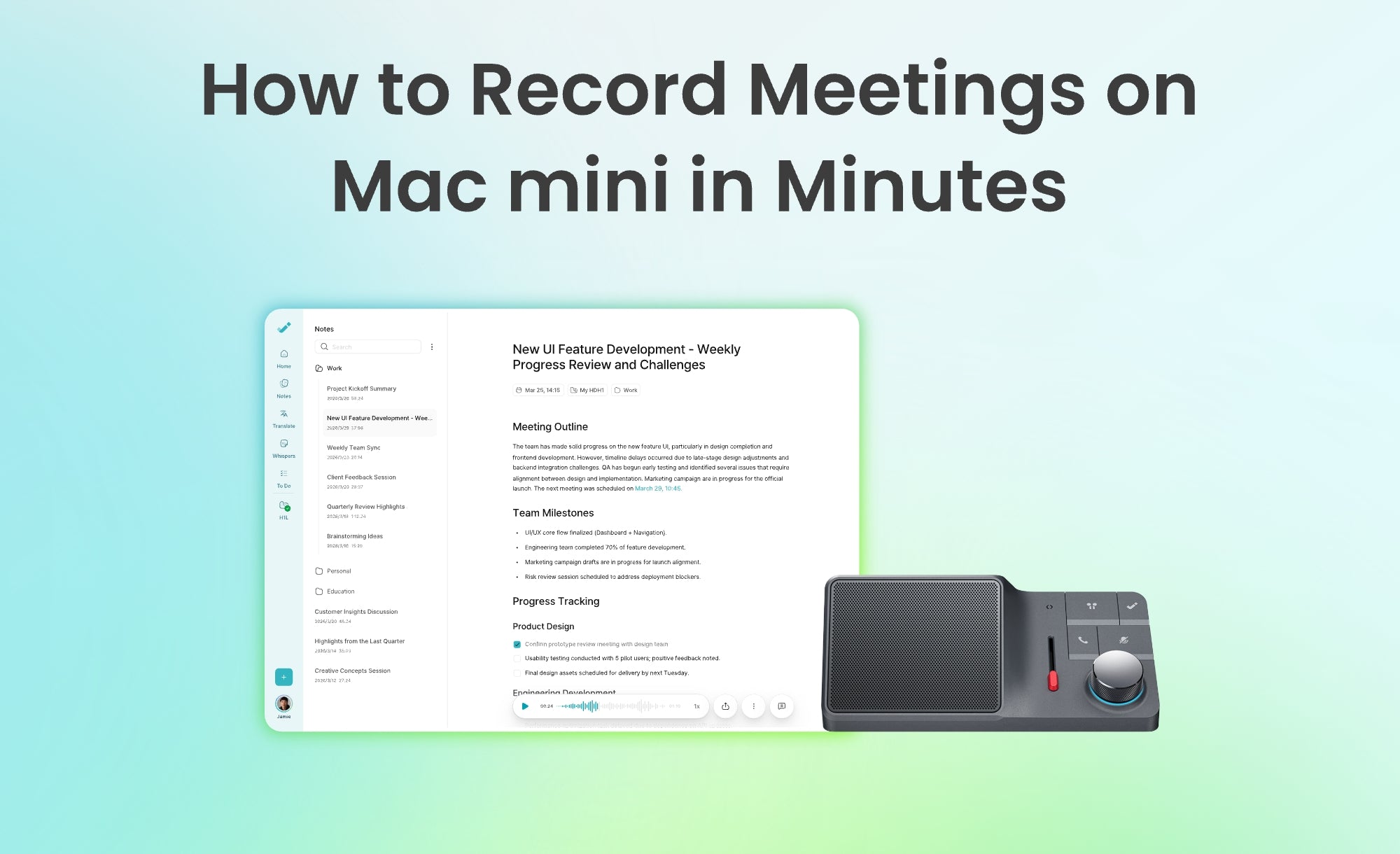
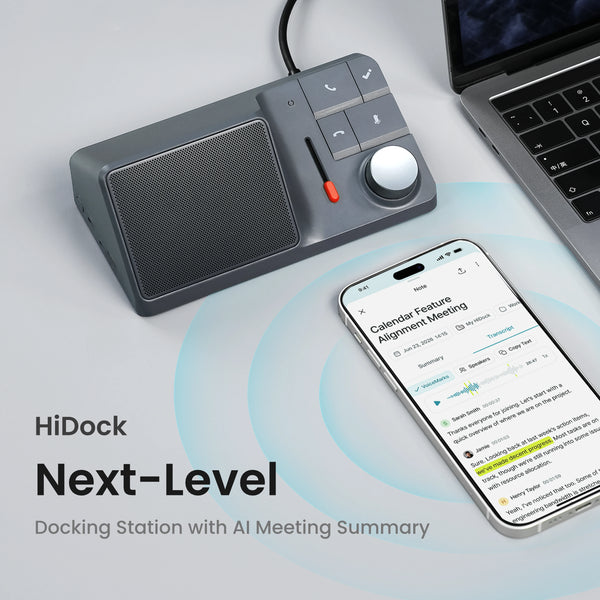



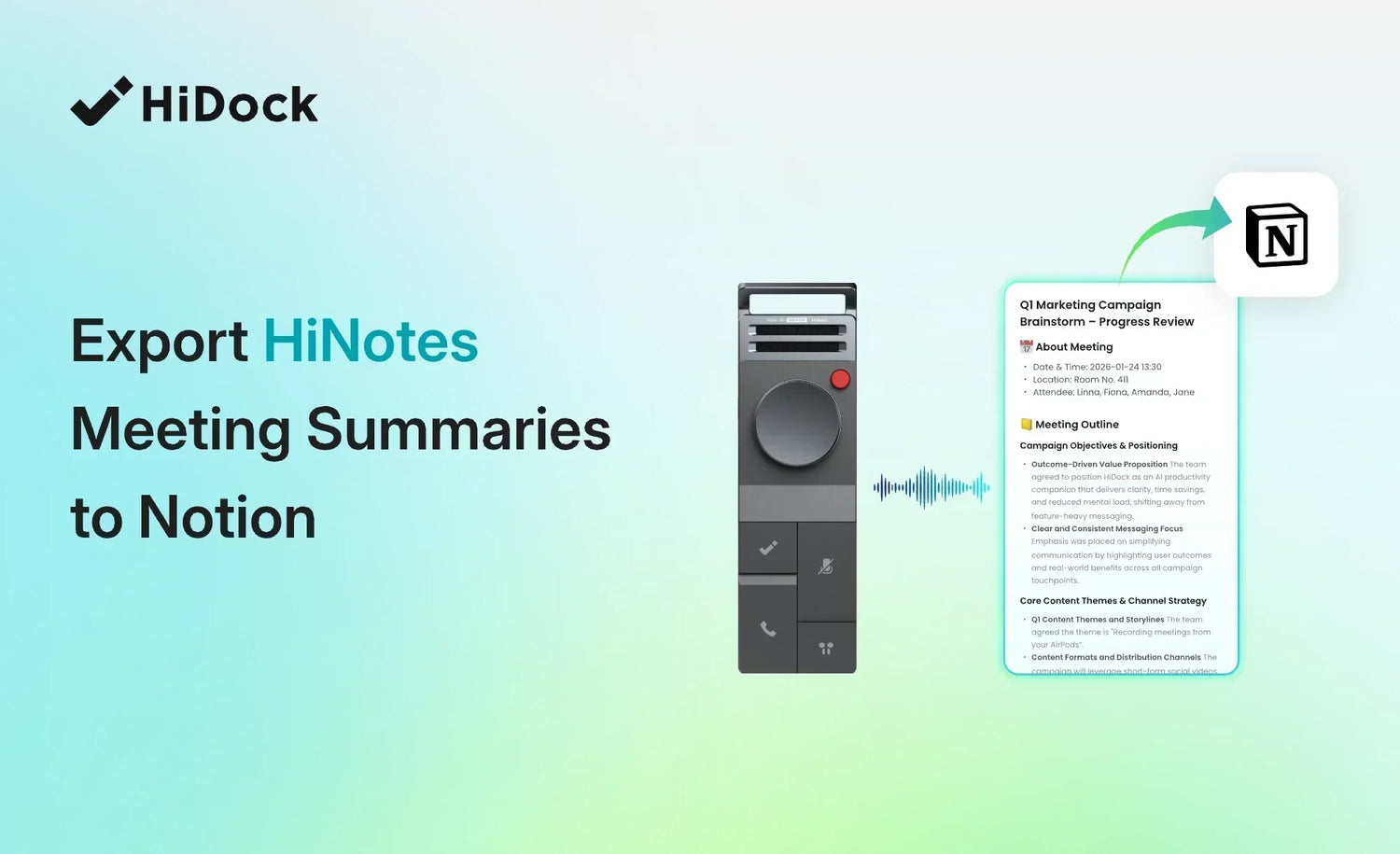
After a meeting is recorded with a HiDock device, HiNotes generates a full transcript and an AI-powered summary—organized chronologically, fully searchable, and accessible from the HiNotes web app, iOS, and Android. Your meeting notes are already in one place.
For teams and individuals who also use Notion as their primary project workspace, HiNotes can send those summaries directly into that workspace with a few clicks—keeping everything connected without any manual copying.
This guide walks through exactly how to set it up and what to expect.
What You Need Before You Start
A HiNotes Pro or Unlimited membership. The Notion integration is available on HiNotes Pro and Unlimited plans — it is not included in the free Member plan.
If you own a HiDock device, such as the P1, P1 mini, or another model , your purchase includes the HiNotes Member plan at no extra cost. The Member plan gives you unlimited AI transcription and summaries as a hardware owner benefit, along with 8 summary templates, VoiceMarks, calendar integration, and 75+ language support. Notion export is not part of the Member plan — it requires an upgrade.
To add Notion export, upgrade to:
- HiNotes Pro — quota-based, pay-as-you-go: $12.99 for 1,200 minutes or $99.99 for 12,000 minutes. Quota never expires.
- HiNotes Unlimited — $199/year subscription with unlimited access and all Pro features.
To upgrade, go to hinotes.hidock.com → click your profile icon → navigate to Plans → select Pro or Unlimited.

A Notion account. You will need an active Notion workspace and the credentials to authorize the HiNotes connection.
A completed HiNotes note. The export option appears after a recording has been transcribed and a summary has been generated. Make sure the note you want to export is fully processed in HiNotes before starting.
How to Export a HiNotes Meeting Summary to Notion — Step by Step
Step 1—Open the Note in HiNotes
Go to hinotes.hidock.com or open the HiNotes app on iOS or Android. Sign in and open the note you want to export. Confirm the Summary tab shows a completed AI summary before proceeding.
Step 2 — Open the Share Menu
On the note page, navigate to the far right of the transcription and summary view. Click the Share icon. A panel will appear showing available sharing destinations, including Notion, OneNote, and Google Docs.

Step 3 — Select Notion
Click the Notion option in the share panel. If this is your first time using the Notion integration, HiNotes will prompt you to authorize the connection.

Step 4 — Authorize Your Notion Account
When the Notion OAuth window opens, sign in with your Notion account. Notion will ask you to select which pages. HiNotes is allowed to access.
Important: you must manually check the pages you want to make available. Notion does not grant access to your entire workspace by default — only the pages you explicitly select during this step will appear in the destination picker in Step 5. If you skip this or leave pages unchecked, the destination list in Step 5 will be empty, and the export will fail.
Select at least one page where you want meeting summaries to go, then click Allow Access to complete authorization. This authorization is a one-time setup — after that, the connection is saved automatically.
Step 5 — Confirm the Export
After authorization, choose the Notion page where you want to send your HiNotes meeting summary. HiNotes allows you to select the destination page in your connected Notion workspace before exporting.

Step 6 — Successful Export
HiNotes will display a "Submitted Successfully" message when the summary has been sent to your Notion workspace.
Step 7 — View the Summary in Notion
Open Notion and navigate to the page where the summary was sent. The HiNotes meeting summary will appear as a new entry, including the structured content from the AI-generated summary.

What Gets Exported to Notion
The share-to-Notion flow sends the AI-generated meeting summary—the structured notes. HiNotes produced from your recording, including key points, decisions, and extracted action items.
Format in Notion: The summary arrives as a new child page inside the destination page you selected. It is not inserted as an inline block and cannot be sent directly into a Notion database.
Snapshot, not a live sync: The export is a one-time copy of the summary at the moment you click export. If you later edit the summary in HiNotes, those changes will not automatically update in Notion — you would need to export again.
The full verbatim transcript is not included in this export. If you need the complete transcript in an external format, use the Export Transcript option from the three-dot menu in HiNotes, which downloads it as a TXT, CSV, or SRT file.
When the Notion Integration Is Useful
HiNotes already gives you a complete, searchable meeting archive. The Notion integration is for teams and individuals who want those summaries to also appear inside an existing Notion workspace — alongside the project pages, tasks, and documents they are already managing there.
If your team uses Notion to track projects and decisions, connecting HiNotes means meeting summaries can flow directly into that structure. Action items from a recorded meeting can sit next to the relevant project page. Team members who missed the meeting can access the summary in a shared Notion workspace without needing to open HiNotes separately. And for organizations that use Notion as their single source of truth, HiDock recordings become part of that system alongside everything else.
HiNotes Plans: What Is Included
HiNotes has three plan levels. Here is how they relate to Notion export:
Member (included with every HiDock device purchase — free)
Unlimited AI transcription and summaries as a hardware owner benefit, 8 summary templates, VoiceMarks, calendar integration, 75+ language support. Notion, Google Docs, and OneNote integrations are not included.
Pro (quota-based, pay-as-you-go)
$12.99 for 1,200 minutes · $99.99 for 12,000 minutes · quota never expires
Includes everything in Member, plus: Notion integration, Google Docs integration, OneNote integration, speaker identification for up to 10 voices, 39+ summary templates, export to Word, PDF, CSV, SRT, and Markdown, and Live transcription.
Unlimited ($199/year)
All Pro features with unlimited access and no quota tracking — suited for heavy users who record and export frequently.
Visit hinotes.hidock.com to compare plans and upgrade.
Troubleshooting
The Notion destination list is empty after authorization
This is the most common issue. During the Notion OAuth step, you must manually select which pages HiNotes is allowed to access. If you did not select any pages, go back to Step 4, revoke and re-authorize the HiNotes connection in your Notion settings (Settings → Connections → find HiNotes → Manage → Disconnect), and then repeat the authorization and check at least one page.
The "Submitted Successfully" message appeared but nothing is in Notion
Check that you selected the correct destination page in Step 5. The summary arrives as a child page inside the destination—look inside the page rather than at the top level of your workspace. Check that you selected the correct destination page in Step 5. The summary is added inside that page—look within it rather than at the top level of your workspace. If the page you selected is inside a shared workspace, confirm you have edit access to it.
The Notion export option is greyed out or not visible
This means your HiNotes account is on the Member plan. Notion export requires a Pro or Unlimited plan. Go to hinotes.hidock.com → Profile → Plans to upgrade.
The export ran but the summary in Notion is outdated
Exports are point-in-time copies. If you edited the summary in HiNotes after exporting, re-run the export from Step 2 to send the updated version.
Frequently Asked Questions
Is Notion export included in the free HiNotes Member plan?
No. Notion export requires a HiNotes Pro or Unlimited plan. The Member plan — included with your HiDock device — gives you unlimited AI transcription, summaries, and core HiNotes features. Third-party integrations including Notion are available on Pro ($12.99 for 1,200 min or $99.99 for 12,000 min) and Unlimited ($199/year). Visit hinotes.hidock.com to upgrade.
Can I export the full transcript — not just the summary — to Notion?
The share-to-Notion flow exports the AI-generated summary. For the full transcript, use the Export Transcript option from the three-dot menu in HiNotes, which downloads it as a TXT, CSV, or SRT file. You can then paste or upload that into Notion manually.
Do I need to authorize Notion every time I export?
No. The Notion connection only needs to be authorized once. After the initial setup, future exports go directly to your Notion workspace without re-authorization.
Which HiDock devices support Notion export?
Notion export is a HiNotes software feature, not tied to a specific device. It works with notes generated from any HiDock recorder: HiDock P1, HiDock P1 mini, HiDock H1 Lite and HiDock H1E — as long as the recording has been processed in HiNotes and you have a Pro or Unlimited plan. The device does not affect export availability.
Can I choose which Notion page the summary is sent to?
Yes. After connecting HiNotes with your Notion workspace, you can select the destination page where you want to export your meeting summary before completing the export. HiNotes will send the AI-generated notes to the selected Notion page.
What other platforms does HiNotes integrate with?
HiNotes Pro and Unlimited support direct export to Notion, Google Docs, and Microsoft OneNote. File-based export in TXT, PDF, Word, CSV, SRT, and Markdown formats is also available. See the full HiNotes export guide for all format details.
Does exporting to Notion remove the note from HiNotes?
No. Exporting to Notion creates a copy of the summary in your Notion workspace. The original note remains in HiNotes — fully intact, searchable, and accessible as usual.
What does the summary look like inside Notion?
The summary arrives as a new child page inside the Notion page you selected as the destination. It is not inserted as an inline block and cannot be sent directly into a Notion database. The export is a one-time snapshot — edits made to the summary in HiNotes after export will not automatically update in Notion.