




When HiNotes transcribes a multi-person meeting, it labels each voice automatically—Speaker 1, Speaker 2, Speaker 3—and generates a full summary, action items, and key decisions from the transcript. The notes are accurate and immediately useful.
You can go one step further and put real names on those voices. Speaker identification runs on Pro minutes — and every HiDock device comes with 300 of them each month, so most users can switch this on today without buying anything (see how to claim them below). Once you assign real names to each voice, both the transcript and every AI summary entry — action items, decisions, key points — update instantly to reflect who actually said what. Shared notes and follow-up emails become clearer, and recurring meeting records easier to navigate over time.
What Is HiDock and HiNotes?
HiDock makes a line of AI voice recorders designed for professionals who record meetings, calls, and conversations and want accurate, structured notes without manually typing anything. The flagship portable device — the HiDock P1 ($169) — connects to your phone or laptop via USB-C, pairs with any Bluetooth earphones through BlueCatch™ technology, and records both sides of a call or meeting locally without a bot joining your call. After the meeting, recordings sync to HiNotes, HiDock's companion app, where AI transcribes the audio, generates a structured summary, and extracts action items automatically.
Speaker identification is one of HiNotes' most practical Pro features: it separates each person's voice into a distinct labeled track in the transcript. Renaming those labels — turning "Speaker 1" into a real name — is what this guide covers.
If you already own a HiDock device and have a HiNotes Pro plan, skip ahead to the steps.
Before You Start: What You Need
Pro minutes on your account. Speaker identification runs on Pro quota: you switch on Use Pro Quota on the Generate Transcript & Summary screen, and HiNotes deducts the length of the recording from your available minutes.
You do not have to buy anything to start. Every HiDock device includes the HiNotes Member plan, and Member accounts get 300 Pro minutes every month — but you have to claim them. Open HiNotes → your profile icon → Plans, and claim the current month's minutes. Once claimed, the balance appears next to the Use Pro Quota switch (for example, "328 Minutes Available").
If you regularly record more than 300 minutes of meetings a month, HiNotes Pro adds quota at $12.99 for 1,200 minutes or $99.99 for 12,000 minutes — and purchased quota never expires.
A completed note with speaker identification enabled via Use Pro Quota. Speaker identification is controlled by the Use Pro Quota switch on the Generate Transcript & Summary screen — it is not a global account setting. You choose whether to use your quota each time you generate a summary.
Chrome or Edge browser. HiNotes is not supported in Safari. If you are on a Mac, open Chrome or Edge and go to hinotes.hidock.com from there.
How to Turn Speaker Identification On or Off
Speaker identification is controlled from the Generate Transcript & Summary screen inside each note. Here is where to find it and what each option does.
Turning speaker identification on
- Open a note in HiNotes
- Click Generate Transcript & Summary
- On the generation screen, you will see your template, language, and AI model options
- Below those settings, find the Use Pro Quota switch
- It shows your available minutes (e.g. "328 Minutes Available")
- Below the switch you'll see teal text reading "Required for speaker identification."
- Switch Use Pro Quota on — it turns blue when active
When Use Pro Quota is enabled, HiNotes processes the audio with speaker separation and deducts the recording duration from your Pro quota. The labeled speaker tracks — Speaker 1, Speaker 2, and so on — will appear in the transcript once processing is complete, ready to rename.

Turning speaker identification off
On the same screen, switch off Use Pro Quota. HiNotes will generate the transcript and summary without speaker identification, and no quota will be deducted. This is useful for shorter or less important meetings where named attribution is not needed, and you want to preserve your Pro quota for higher-priority recordings.
Why Speaker Names Upgrade Your AI Summaries
HiNotes generates summaries, action items, and key decisions from the transcript. With speaker identification enabled, the output already attributes each point to a labeled voice. Renaming those labels adds one more layer of clarity.
With generic labels, a summary reads:
"Speaker 1 agreed to send the proposal by Friday. Speaker 3 asked for clarification on the budget."
After renaming, the same summary reads:
"James agreed to send the proposal by Friday. Chen asked for clarification on the budget."
The second version is ready to paste into a follow-up email or share directly with a teammate. For recurring meetings with the same group, named summaries also build a clearer record over time — making it easier to track who committed to what across sessions.
How to Rename Speakers in HiNotes — Step by Step
Step 1 — Open the Note
Go to hinotes.hidock.com or open the HiNotes app on iOS or Android. Sign in and open the note from the meeting where you want to rename speakers.
Step 2 — Expand the Transcript
Inside the note, locate the Transcript button. Tap it to expand the full transcript inline below your summary — it slides open without leaving the page.
Step 3 — Select a Speaker and Enter Their Name
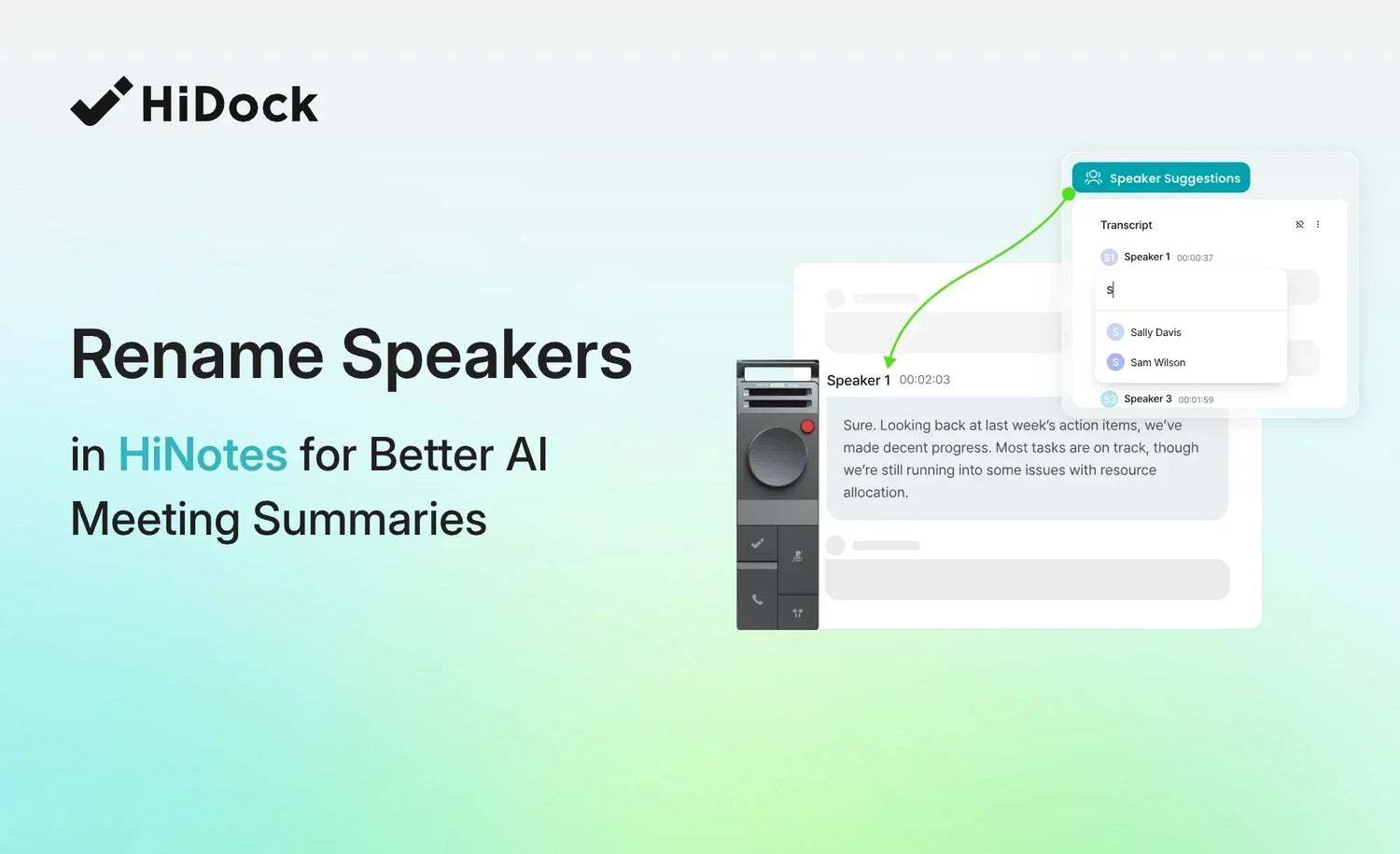
Click or tap on a speaker label and type the person's real name. For example, change "Speaker 1" to "Hailey" or "Amanda."
As you type, HiNotes may display Speaker Suggestions — names drawn from people who appeared in previous meetings and from your saved contacts. If the right name appears in the suggestion list, select it to apply it instantly without typing the full name.

Once you confirm a name, the change applies across the entire transcript immediately—every line attributed to that speaker updates at once.


Step 4 — Repeat for Every Speaker
Repeat Step 3 for each speaker label in the transcript. HiNotes supports up to 10 speakers per meeting. Once all speakers are named, both the transcript and the AI summary reflect the real names throughout.
Speaker renaming works the same way across all HiDock devices — HiDock P1, P1 mini, H1 Lite, and H1E. The device used to record does not affect the renaming workflow — it is handled entirely in HiNotes.

What Speaker Suggestions Does
Speaker Suggestions is a feature that speeds up the renaming process for recurring meetings.
When you start typing a name in the speaker label field, HiNotes suggests names from two sources: people who appeared as named speakers in your previous HiNotes transcripts and names from your saved contacts. If you meet with the same team weekly, their names will typically appear as suggestions after the first time you rename them manually.
This means the first time you rename speakers in a new meeting series takes the longest. From the second meeting onward, the right names surface as suggestions, and renaming becomes a matter of a few clicks rather than typing each name from scratch.
Speaker Suggestions does not automatically apply names without your confirmation — you always choose which suggestion to accept.
How Renaming Affects Different Parts of Your Notes
Renaming speakers in the transcript has the following effects:
Transcript view: All lines attributed to the renamed speaker update to show the real name across the entire transcript the moment you confirm it.
AI Summary: The summary reflects the updated names automatically — no additional step needed. Action items, key decisions, and all structured sections update along with the transcript.
Exports: Any export created after renaming carries the real speaker names. TXT export is included with the Member plan; PDF, Word, CSV, and SRT files, along with the Notion, Google Docs, and OneNote integrations, are HiNotes Pro features.
HiNotes Pro: What Is Required and What Is Included
Every HiDock device purchase includes the HiNotes Member plan free — unlimited AI transcription and summaries, 8 summary templates, VoiceMarks, calendar integration, and 75-language support, at no extra cost for the life of the device.
Speaker identification, Speaker Suggestions, and speaker renaming are available as part of HiNotes Pro — an optional upgrade for teams who want named speaker attribution alongside everything already included in the Member plan.
HiNotes Pro is quota-based and pay-as-you-go: $12.99 for 1,200 minutes or $99.99 for 12,000 minutes. Quota never expires — it is only deducted when you use it. For heavy users, HiNotes Unlimited removes the quota entirely at $24.99/month or $199/year.
Compare HiNotes plans to upgrade or check current pricing.
Tips for Better Speaker Identification
Accurate speaker identification makes renaming faster because there are fewer misattributed lines to fix manually. A few practices that help:
Use good audio. Speaker identification works from voice differentiation. Cleaner audio — less background noise, less cross-talk, each person speaking one at a time — produces more accurate initial labeling. HiDock's Bi-directional Noise Cancellation (BNC) helps with this in Call Mode.
Place the device well for in-person meetings. In Room Mode, position the HiDock device centrally so all speakers are at a roughly equal distance from the microphone.
Review the transcript after renaming. Scroll through the transcript quickly to catch any misattributed lines — moments where the wrong speaker was assigned to a sentence. Correct those directly in the transcript so the summary reflects the accurate record.
Use Speaker Suggestions consistently. The more consistently you rename the same people across meetings, the faster and more accurate the suggestions become.
Frequently Asked Questions
What if I generated a summary before enabling Use Pro Quota?
Open the note and click Re-summarize. On the generation screen, switch Use Pro Quota on and confirm. HiNotes will reprocess the note with speaker identification enabled. Your previous summary will be replaced with the new one including speaker labels.
Is speaker renaming free with a HiDock device?
Yes, within your monthly allowance. Every HiDock device includes the HiNotes Member plan, and Member accounts receive 300 Pro minutes every month — speaker identification runs on those minutes. You do need to claim them first: open HiNotes → your profile icon → Plans and claim the current month's minutes, otherwise your balance stays at zero. Renaming a speaker afterwards costs nothing extra — quota is only consumed at the moment the transcript is generated with Use Pro Quota switched on. If you need speaker names on more than 300 minutes of meetings a month, HiNotes Pro adds quota at $12.99 for 1,200 minutes.
Does renaming a speaker in one meeting affect other meetings?
Renaming a speaker updates the transcript of the specific note you are editing. It does not retroactively update other past meetings. However, Speaker Suggestions will remember the name you used and offer it as a suggestion in future meetings where the same voice appears.
Do I need to re-generate the summary after renaming?
No. Renaming speakers updates both the transcript and the AI summary instantly — action items, key decisions, and all structured output reflect the real names immediately without any additional step.
What if HiNotes assigns the wrong voice to the wrong speaker?
Speaker identification is AI-based and can occasionally misattribute a line — particularly in noisy environments, with overlapping speech, or when two speakers have similar vocal qualities. You can correct individual lines manually in the transcript. Review the transcript after renaming to catch any misattributions before sharing or exporting.
Can I rename speakers on iOS and Android?
Yes. The speaker renaming feature is available in the HiNotes iOS and Android apps as well as the web app. The steps are the same — open the transcript, tap the three-dot menu, and select Name Speaker.
What is Speaker Suggestions and how does it work?
Speaker Suggestions is a HiNotes 3.0 feature that offers name suggestions as you type in the speaker label field. It draws from people you have previously named in other HiNotes transcripts and from your saved contacts. You always confirm which suggestion to apply — it does not rename speakers automatically.
Does exporting to Notion include speaker names?
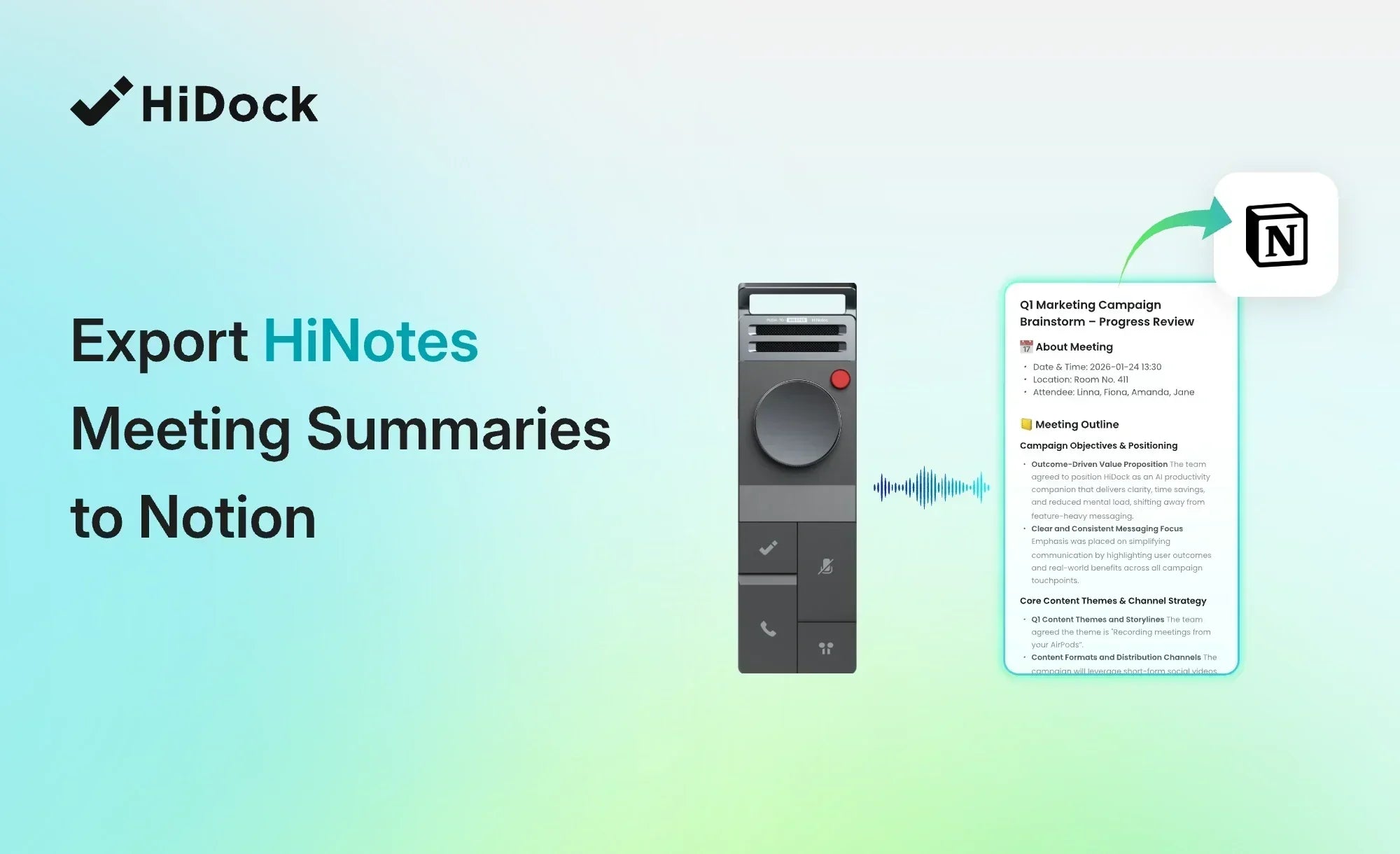
Yes. Once you rename speakers, both the transcript and summary update instantly — so any export to Notion, Google Docs, or OneNote will include the real names.
For the full Notion export guide, see How to Export HiNotes Meeting Summaries to Notion. Note that integration exports (Notion, Google Docs, OneNote) are HiNotes Pro features — on the Member plan, TXT is the available export format.
New to HiDock? Start Here
If you found this guide while researching AI meeting notes and do not yet own a HiDock device, here is the short version of how the full workflow works.
HiDock makes a range of AI voice recorders for different working styles. Three of the most popular:
- HiDock P1 ($169) — the portable flagship. Records virtual calls through Bluetooth earphones via BlueCatch™, or in-person conversations in Room Mode. Stores up to 1,000 hours of recordings on the device, with up to 8 hours of battery life.
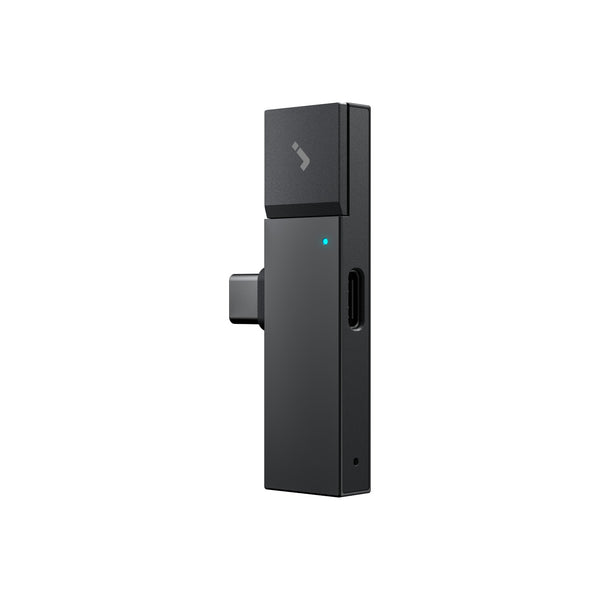
- HiDock P1 mini ($119) — compact and lightweight, plugs directly into your phone's USB-C port. Ideal for professionals who primarily record calls and meetings on the go.
- HiDock H1 Lite ($189) — a desktop AI speakerphone built for Mac mini and fixed desk setups, with full Call Mode and Room Mode support.
Every HiDock device includes unlimited AI transcription in 75 languages at no extra cost for the life of the device—no monthly transcription fee for the core use case.
After recording, you sync to HiNotes, where the transcript is generated and the AI summary is produced. Speaker identification is available using your monthly 300 Pro minutes included with the Member plan—claim them on the Plans page — or by purchasing additional HiNotes Pro quota if you need more.
The result is a meeting record where every action item, decision, and key point is attributed to a real person by name — ready to share, export to Notion or Google Docs, or paste directly into a follow-up email.