




Welcome to the latest update for your HiDock P1. Over the past few months, we have been listening closely to your feedback, reading your emails, and paying attention to how you actually use the P1 in your daily lives. We know that when you sit down at your desk, you want your tools to fade into the background so you can focus on your work.
With Firmware 1.4.3, our goal was simple: to remove friction and improve the core audio experiences you rely on. We are not here to claim this update will change your life, but we do hope these improvements make your daily calls, recordings, and coding sessions noticeably smoother and more enjoyable. We have focused on four main areas: improving call audio quality, adding flexible recording formats, introducing a dedicated Vibe Microphone mode for voice-driven workflows, and polishing a few rough edges in the overall user experience.
Here is a detailed breakdown of what is new in Firmware 1.4.3, why we made these changes, and how you can start using them today.
1. P1 as Microphone Input in Call Mode: A Podcast-Quality Upgrade for Your Meetings
Let us start with what we consider the biggest quality-of-life improvement in this release. We know that in previous versions, the Bluetooth audio quality during calls was not ideal. Before Firmware 1.4.3, when you entered call mode after BlueCatch™️, the system defaulted to using your earphone's microphone as the input. Because of the limitations of the standard Hands-Free Profile (HFP), the audio sample rate was capped at 16kHz. The result was often a compressed, sometimes distorted voice quality that did not reflect the true capabilities of the HiDock P1 hardware. We heard your frustrations, and we knew we needed to fix this.
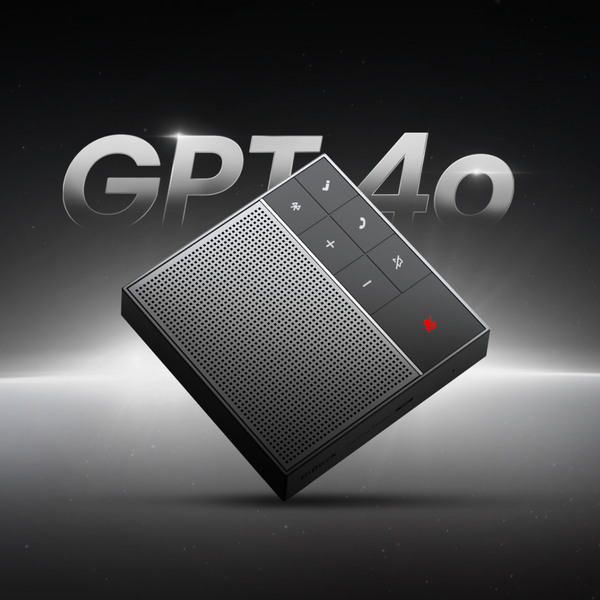
With Firmware 1.4.3, you can now choose the HiDock P1 itself as your primary microphone input in call mode. When you make this switch, the device utilizes the Advanced Audio Distribution Profile (A2DP) instead of HFP. More importantly, it activates the P1's built-in dual Φ6 ECM (Electret Condenser Microphone) array.

Please note: To use HiDock P1 as a microphone input during calls, you will need to connect your earphones via BlueCatch™️.
What does this mean for you? It means that instead of sounding like you are speaking through a standard Bluetooth headset, your voice is captured with the richness and clarity of a studio-level microphone. The ECM mics are designed to capture a wider frequency response and more natural vocal tones. Whether you are leading a team meeting, conducting a remote interview, or catching up with a client, you will sound much closer to a professional podcaster.
We think you will notice the difference immediately. In fact, we encourage you to record a quick test clip before and after the update to hear the contrast for yourself. We hope this change gives you more confidence during your important conversations, knowing that your voice is coming through clearly and professionally.
2. Recording Quality Audio Settings: Tailoring Audio to Your Needs
Another area where we received consistent feedback was regarding recording formats. While our default recording settings work well for general voice notes and meeting transcriptions, we understand that many of you use the HiDock P1 for tasks that require higher fidelity. If you are recording an interview for a podcast, capturing audio for a video project, or simply want the best possible source file for post-production editing, you need more control over the output.
Firmware 1.4.3 introduces two distinct recording quality settings that you can choose based on your specific needs:

- MP3 (96kbps): This is your go-to setting for everyday use. It offers a great balance between clear voice capture and efficient storage. If you are recording long meetings, personal voice memos, or lectures where the primary goal is transcription and reference, MP3 is the most practical choice. It keeps file sizes manageable without sacrificing the intelligibility of the speech.
- WAV (768kbps): This is the new high-fidelity option. WAV is an uncompressed audio format, meaning it captures and retains every detail of the sound exactly as the microphones pick it up. At 768kbps, this setting provides a massive leap in audio richness. We recommend using the WAV setting for scenarios where the audio will be published, broadcasted, or heavily edited. If you are conducting a high-stakes interview or recording voiceovers, this uncompressed format gives you the clean, artifact-free audio that professional post-production demands.
By giving you the choice between efficiency and absolute quality, we hope the HiDock P1 becomes a more versatile tool in your creative and professional arsenal.
3. Vibe Microphone Mode: A Natural Flow for Voice-Driven Coding
Now, let us talk about the most extensive addition in Firmware 1.4.3: the Vibe Microphone mode.
Over the last year, we have watched the rise of "vibe coding" and voice-driven AI workflows with great interest. Tools like Typeless on Mac are changing how developers interact with their environments, allowing them to dictate code, prompt AI assistants, and navigate their workflows using natural speech. However, we noticed that the hardware experience often lagged behind the software. Wearing a headset all day can be fatiguing, and constantly reaching for the keyboard to toggle a microphone breaks your concentration.
We realized that the HiDock P1, with its high-quality microphones and tactile buttons, was uniquely positioned to solve these hardware friction points. That is why we built Vibe Microphone mode.

How to Set Up Vibe Microphone Mode
Getting started is straightforward. We wanted to make sure the setup process was as frictionless as the feature itself:
1. Power on your HiDock P1. Ensure it is adequately charged and ready to go.
2. Activate the mode. Double-click the power button. You will hear a voice prompt confirming "Vibe Microphone."
3. Connect to your computer. Open your laptop's Bluetooth settings. Look for a new device named "HiDock P1-Vibe Mic" and pair it.
4. Configure your software. Open your preferred voice input tool (such as Typeless). In the application's settings, configure your voice input keyboard shortcut.
5. Start talking. You can now simply push the Wheel button on the HiDock P1 to initiate voice input. Push to talk, release, and watch your words turn into action.
6. Exit when done. To leave Vibe mode and return to standard operation, just double-click the side power button again.
(For a more detailed walkthrough, please refer to our dedicated setup guide linked here)
Why the HiDock P1 is Well-Suited for Vibe Coding
We did not just add a software toggle; we built this feature because the physical design of the P1 naturally complements the vibe coding workflow. Here is why we think it works so well:
1. Close-Range Pickup Means Even Soft Speech is Recognized Clearly
The HiDock P1 uses two professional-grade condenser microphones with strong directional pickup. Because the device can sit very close to your mouth on your desk or in you hand, it can capture your voice clearly even when you speak quietly.
This matters a lot for vibe coding. Most of the time, you are not "commanding" the AI in a loud, deliberate way. You are thinking out loud, refining ideas as you go, and adjusting prompts in real time. If you have to raise your voice every time, or worry about disturbing people nearby, your flow gets interrupted. The HiDock P1 makes it possible to work in a softer, more continuous, and more natural way — whether you are in a quiet office, a shared workspace, or coding late at night.
2. Tactile "Push-to-Talk" Ritual
There is a certain gravity to picking up the P1 and holding the wheel button to speak. It transforms "entering a prompt" into a natural conversation. It feels less like a command and more like a continuous brainstorming session with an AI partner.

4. Other Quality-of-Life Improvements
Finally, we have included several under-the-hood improvements and optimizations based on the bug reports and feedback you have submitted. While these might not be headline features, they are crucial for a stable and reliable experience:
- Real-Time Recording Status Display: We have added a real-time status display for recordings. You can now see exactly when the device is actively recording, removing any guesswork and giving you peace of mind that your important conversations are being captured.
- Optimized Recording Loading Speed: When connecting your HiDock P1 to the HiNotes app, you will notice that your recordings load significantly faster. We have optimized the data transfer process so you can access your audio even faster.
Looking Forward
Firmware 1.4.3 is available now, and we encourage you to update your HiDock P1 to experience these improvements firsthand.
We build these tools for you, and your feedback is the engine that drives our development. Whether you are using the new studio-quality mic for a crucial client call, recording an interview in high-fidelity WAV, or spending hours in a seamless vibe coding session, we hope this update makes your work a little easier and a lot more natural.
Thank you for your continued support, your honest feedback, and for being a part of the HiDock community. Please keep letting us know what is working, what isn't, and how we can continue to improve.
Team HiDock


