


About the author: Yasmine tested all four recording methods across two weeks using a Pixel 8 Pro, iPhone 15 Plus, and Samsung Galaxy S24 in office and field environments. She covers productivity hardware and AI transcription tools for HiDock.
In this article
- Why iPhones and Android phones can't record calls natively
- Call recording laws and consent rules: what you need to know
- How to record and transcribe phone calls — 4 methods
- Best phone call recorder: comparison table
- How to use your call transcription: 5 practical steps
- Frequently asked questions
You hang up after a 45-minute client call. You took some notes, but you missed the part where they changed the spec. You can't ask them to repeat it. Sound familiar?
Recording and transcribing phone calls used to require expensive software or a dedicated recorder. In 2026, there are four ways to do it — some completely free, others free after an initial investment. Here's how each one works, and which is worth your time.
There are four ways to record and transcribe phone calls for free in 2026:
- Use iPhone and Android built-in call recorders
- Use a third-party call recording app like TapeACall or Cube ACR
- Record on speaker while a transcription app runs in the background
- Use a dedicated hardware recorder like the HiDock P1 mini for automatic, subscription-free transcription
The method that works best depends on your phone, privacy needs, and how often you record.
Why Native Call Recording Still Isn’t Enough
Recording phone calls used to require third-party apps or dedicated hardware, often with ongoing subscription costs. That has changed. Apple introduced native call recording in iOS 18.1, while Google now offers built-in call recording on Pixel 6 and newer devices, with AI-powered Call Notes available on Pixel 9 and later.
So why are you still reading a guide about recording phone calls?
Because built-in doesn’t mean unrestricted. Apple’s feature plays an unavoidable announcement to everyone on the call, doesn’t work with WhatsApp, Zoom, Microsoft Teams, or other VoIP apps, and isn’t available in the EU and several other regions. Google’s most advanced version—Call Notes with automatic transcription and AI summaries—is limited to Pixel 9 and later devices (excluding the 9a) and only available in selected countries. Most Android phones still don’t include a built-in call recorder at all.
If the free built-in option on your device, in your country, supports the type of calls you make, it’s an excellent place to start. If any of those conditions don’t apply, you’ll need a different solution. That’s exactly what this guide covers.
Call recording laws and consent rules: what you need to know
Know your consent rules before you hit record.
US federal law (the Electronic Communications Privacy Act) requires one-party consent — meaning only you need to know the call is being recorded. However, 13 states require all-party consent, including California, Florida, and Illinois. Outside the US, laws differ further. VoIP calls (Zoom, WhatsApp, Skype) fall under the same consent framework in most jurisdictions.
The safest approach in any jurisdiction: tell the other person before you start recording. Most people don't object, and it removes all legal ambiguity.
With that in mind, here are the four methods — ordered from most limited to most capable.
How to record and transcribe phone calls for free — 4 methods
We tested all four methods over two weeks in May 2026 using a Pixel 8 Pro, iPhone 15 Plus , and Samsung Galaxy S24, across standard phone calls and VoIP sessions in different environments.
Method 1 iPhone and Android built-in call recorder
iPhone (iOS 18.1+): During a standard phone call or one-to-one FaceTime Audio call, tap Call Recording in the "More" menu to start recording. Both parties immediately hear an automated announcement, which cannot be disabled. Recordings save automatically to the Notes app with a transcript; AI-generated summaries are available only on Apple Intelligence-capable iPhones (iPhone 15 Pro, iPhone 15 Pro Max, and the iPhone 16 series). Recordings and transcripts are encrypted and processed on-device, with optional iCloud syncing if enabled. Limitations: the feature only works with the Phone app and FaceTime Audio, not WhatsApp, Zoom, Microsoft Teams, or other third-party VoIP apps, since iOS doesn't expose call audio to those apps at all. It's also unavailable in a long list of regions. Transcription supports a limited set of languages, and Apple recommends reviewing transcripts before relying on them for accuracy.
Google Pixel (Android 14+): Basic call recording (audio only, with a mandatory spoken announcement) is now available on Pixel 6 and newer — this rolled out broadly with the November 2025 Feature Drop; before that it was limited to Pixel 9. Pixel 6, 7, and 8 series, plus the Pixel 9a, are capped at audio-only recording (no on-device transcript) because they can't run the Gemini Nano model the AI features need — the 9a specifically is excluded due to its 8GB RAM. For a transcript on these devices, you need to import the recording into Google Recorder or another tool. Pixel 9 and later (excluding the 9a) support Call Notes, a Gemini-powered feature that records, transcribes, and summarizes calls in the Phone app, currently available in the US, UK, Canada, Ireland, Australia, and Japan; India has received it as a beta preview rather than a full launch tied to a specific device generation. As of early 2026, Google has been expanding basic audio-only recording to more countries and has stated an intention to reach most markets where Pixel is sold, subject to local law. Like Apple's implementation, it only records standard cellular calls, not WhatsApp, Zoom, Teams, or other VoIP services.
Why professionals still prefer hardware: Apple's and Google's built-in recorders are strong free options but both require an announcement that can't be turned off, don't capture third-party VoIP apps, and have regional or device gaps.
Method 2 Third-party call recording apps
Third-party apps work on phones that have no built-in recording option — but the right app depends heavily on whether you're on iPhone or Android.
TapeACall
TapeACall works on both iPhone and Android. It records calls by merging a three-way call through its own bridge number, capturing both sides clearly. The mechanism works around the OS-level restriction by using your carrier's conference calling feature — which means your carrier must support three-way calling, and some plans charge extra for it. Worth confirming before subscribing.
TapeACall has no ongoing free tier. After a 7-day free trial, pricing varies by platform and has changed multiple times following a recent change in ownership — recent listings show the iOS app around $10.99 with several in-app purchase tiers, while the separate Android app has historically been priced slightly lower. Check TapeACall's current pricing page directly before subscribing
On Android: Cube ACR
Cube ACR (officially "Call Recorder - Cube ACR," published by Cube Apps Limited) is free to download directly from the Google Play Store, with no call-length or recording-count limits on the free tier. It records standard phone calls and many VoIP apps — WhatsApp, Viber, Line, Skype, Google Meet, and others.
The setup is more involved than a typical app install, though. On Android 9 and newer, Google's Accessibility API restrictions mean Cube ACR needs a companion app called Cube ACR Helper, plus manually enabling Accessibility Service permissions through several settings screens. It's not difficult, but it's a multi-step process the first time, not a one-tap install. The developer's own FAQ is also direct about a real limitation: VoIP recording depends on your specific device's hardware and isn't guaranteed to work on every phone, and recording does not work over Bluetooth headsets regardless of device.
Unlike iPhone apps that route audio through external servers, Cube ACR captures audio locally on your device via Accessibility Service, which is a meaningful privacy advantage once it's set up. A paid Premium tier removes ads and adds cloud backup, PIN lock, and a few other conveniences — but per the developer's own warning in the app listing, it doesn't improve core recording quality, so it's worth testing the free version first.

VoIP note: Cube ACR supports recording WhatsApp,, Viber, Line, Google Meet, and other VoIP apps directly. TapeACall on iPhone does not support VoIP apps — standard calls only.
We tested TapeACall on iPhone 15 Plus. Both sides were captured clearly. Audio is routed through TapeACall's servers — we would not use it for confidential client or legal calls. Cube ACR on the Galaxy S24 recorded WhatsApp calls automatically with no setup beyond the initial installation.
Best for: Users on any platform who record calls regularly (TapeACall, iOS and Android — after trial). Android users who want free, automatic recording including VoIP apps without server routing (Cube ACR).
Method 3 Record on speaker + transcription app (Otter.ai, Whisper)
This method requires no extra hardware and no paid call-recording app. Put the call on speakerphone and use a second device to record the conversation with Voice Memos or another audio recorder. After the call, you can transcribe it using Otter.ai’s free plan (subject to usage limits) or run OpenAI’s open-source Whisper locally for free.
In a quiet room with a clear speaker, this works reasonably well. The problem is that "a quiet room with a clear speaker" doesn't describe most real working environments.

In a quiet room, accuracy climbed to around 87% — workable for low-stakes personal calls where some errors are acceptable. In a standard open office, it dropped to ~78%. Not reliable for professional use.
A critical limitation to be aware of: Otter.ai’s free plan caps each transcription at 30 minutes, so a 45-minute client call will be cut off mid-transcript. The free plan also includes only 3 lifetime file imports (not 3 per month). If your calls regularly run long, use Whisper locally instead—it has no transcription time limits and runs entirely on your own device.

VoIP note: The most flexible method for VoIP — works with any call on speaker, including Zoom, WhatsApp, and Teams. Audio quality limitations still apply.
Best for: Personal calls in a quiet environment where occasional inaccuracy is acceptable. Use Whisper offline if your calls regularly exceed 30 minutes.
Method 4 Recommended for professionals HiDock P1 mini (hardware recorder)
Disclosure: HiDock is the company behind this article. We've included the P1 mini as Method 4 because it outperformed the other methods in our testing — but we've tried to be honest about the trade-offs, including its upfront cost and compatibility requirements.
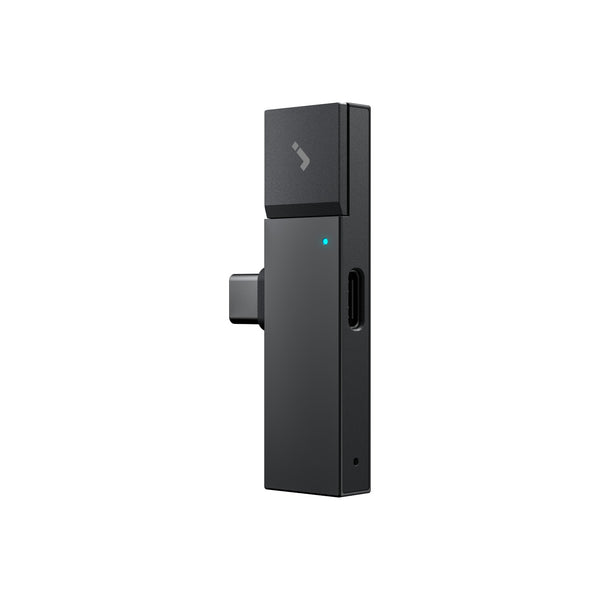
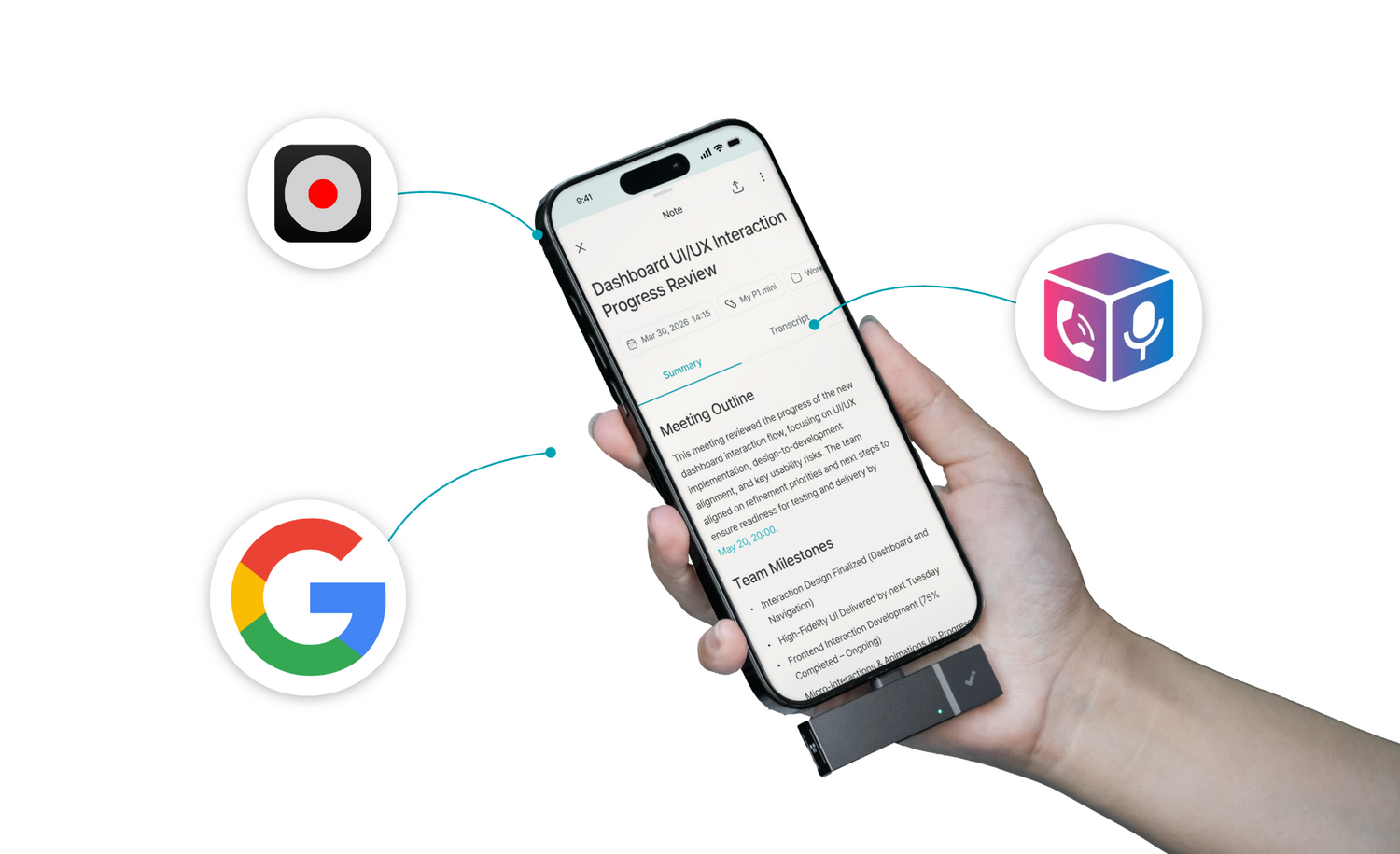
The HiDock P1 mini is a small dongle that plugs into your phone's USB-C port. It records calls using one of two modes, and the distinction matters a lot for understanding how it works.
Call Mode uses BlueCatch technology: you connect your Bluetooth earphones to the P1 mini instead of directly to your phone. The P1 mini sits between the earphones and your phone, intercepting the audio passing both ways. This captures both sides of the call with clarity — your voice and the other party's — because both travel through the earphone connection. Bluetooth earphones are required for this mode to work.
Room Mode uses the P1 mini's built-in dual ECM microphones to capture all voices in the room. This works without earphones and is ideal for in-person meetings, interviews, and calls on speakerphone.
After either mode, HiNotes AI transcribes the recording automatically. Basic transcription is free with the device purchase — no subscription, no monthly fee. The transcription supports 75 languages and typically completes in under a minute.
A few practical specs worth knowing: the P1 mini draws power from your phone rather than carrying its own battery, so there's nothing extra to charge — it just works whenever it's plugged in. It has 32GB of on-device storage, and Room Mode recordings can run up to 4 hours per session, which comfortably covers most calls and meetings.
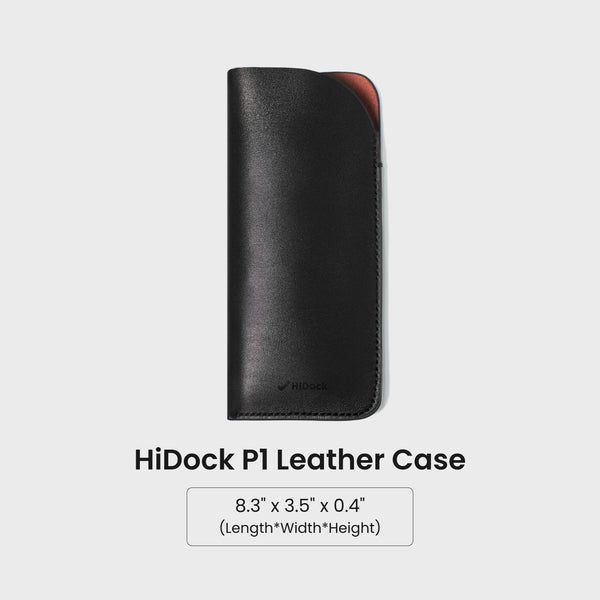
The $119 price includes the device, silicone pads, and a quick start guide; a cable and case come with the Combo bundle if you want those too.
Honest note on "free": the device costs $119 upfront. The transcription itself is free forever after that. Whether that qualifies as "free" depends on your perspective — but there are no recurring costs beyond the hardware purchase.
Compatibility: The P1 mini requires a USB-C port. It works with iPhone 15 and later only (iPhone 14 and earlier use Lightning and are not compatible). On Android, it requires OTG support, which most modern Android phones include.

In our testing, HiNotes achieved 94–96% transcription accuracy on clear calls — well above the ~78% we recorded with the speaker method in a typical office. The dual-microphone setup, combined with intercepting audio at the earphone connection rather than through the phone's speaker, is what drives the accuracy difference.


VoIP note: In Call Mode, BlueCatch captures audio through your Bluetooth earphones — so Zoom, WhatsApp, and Teams calls are all captured if you're wearing the earphones. In Room Mode, speakerphone calls are captured via the built-in microphones. Both methods work; Call Mode gives higher quality.
Tested on iPhone 15 Plus with AirPods Pro. BlueCatch pairing was quick and reliable in our test. Both sides of the call were captured clearly even in a noisy coffee shop. Transcription completed in about 50 seconds after a 20-minute call.
Two things to know: like most Bluetooth accessories, pairing reliability can vary by earphone model — ours worked smoothly, though results may differ with other devices. Also, avoid unplugging your charger mid-call, since switching power sources while recording can interrupt capture — a quirk HiDock has acknowledged. Neither is a dealbreaker, just worth keeping in mind for calls you can't repeat.
Best for: Sales reps, consultants, journalists, and researchers who record calls regularly for work, need 90%+ accuracy, and value on-device privacy.
Quick cost check: does the P1 mini actually make financial sense?
Of the four methods, two have on-the-record subscription costs to compare: TapeACall (iOS and Android) at $10.99/month, and the HiDock P1 mini at $119 once. Here's the math using only those confirmed prices:

The exact numbers move with TapeACall's current pricing, but the shape of the comparison holds: a monthly subscription is cheaper in month one, and a one-time device purchase is cheaper for everyone who keeps recording past month twelve.
This math doesn't apply to Method 1 (Pixel) or Method 3 (Otter.ai/Whisper) the same way, since both have functional free tiers with no ongoing subscription cost — they're free if their limitations (Pixel-only hardware, or the 30-minute session cap) work for you. The comparison that actually matters is: is a free tier good enough for your use case, or do you need a paid solution? If you need a paid solution, a one-time hardware cost like the P1 mini's typically overtakes a monthly subscription within a year and keeps paying off every month after.
Best phone call recorder for your situation

*Cube ACR requires a one-time setup (companion app + Accessibility permissions) on Android 9+. VoIP recording depends on device hardware and does not work over Bluetooth headsets.
How to use your call transcription: 5 practical steps
A transcription sitting in an app is only half the value. Here's how to make it work for you:
Find action items instantly Search the transcript for "we agreed," "follow up," or "by Friday." Every commitment from the call is findable in seconds rather than buried in your memory.
Share with teammates Paste the key sections into Notion, Teams or your project tool. The whole team gets the context without needing to be on the call.
Write precise follow-up emails Use the transcript instead of your notes. No more "I think they said..." — you have the exact words.
Log in your CRM Attach the transcript to the contact record. Six months from now, you'll have the full context of every conversation at your fingertips.
Build a searchable archive Store transcripts by client or project. When a client says "but we agreed in our March call that..." — you can pull the exact quote in ten seconds. See our guide: HiNotes 3.0
Frequently asked questions
Can I record a phone call for free?
Yes. iPhone users on iOS 18.1+ and Pixel 6+ users can record standard phone calls for free. Pixel 9+ (excluding the 9a) also gets free AI transcription and summaries with Call Notes. Cube ACR is a free Android alternative with no recording limits but requires a one-time setup. On any phone, Otter.ai or Whisper can transcribe speaker recordings. The HiDock P1 mini costs $119 and includes unlimited basic transcription and AI summaries with no ongoing subscription.
Is it legal to record phone calls?
It depends on where you are. US federal law allows one-party consent in most states, but 13 states — including California and Florida — require all-party consent. See the legal section above for the state breakdown and the RCFP's full guide.
What is the best app to transcribe phone calls automatically?
For free software options, Otter.ai and offline Whisper are the strongest (see Method 3 for their limits). For professional use requiring high accuracy, the HiDock P1 mini with HiNote is the clear winner — see Method 4 for testing results.
Does the HiDock P1 mini work with any phone?
No — it requires a USB-C port, so it works with iPhone 15 and later only. iPhone 14 and earlier use Lightning and are not compatible. On Android, it works with phones that support OTG functionality, which covers most modern devices. Always check your specific model before purchasing.
Can I record VoIP calls—Zoom, WhatsApp?
Yes, depending on the method. Cube ACR on Android records WhatsApp, Viber, Line, and other VoIP apps once set up, though support varies by device and doesn't work over Bluetooth headsets. The HiDock P1 mini captures VoIP audio through Bluetooth earphones in Call Mode, or on speakerphone in Room Mode. Speaker recording (Method 3) works with any call on speaker. The native iOS 18.1 and Pixel recorder and TapeACall do not support VoIP apps. Consent laws apply equally to VoIP calls.